Mortal Shell II: Pulse Upgrade Unselectable at a Beacon
Check an unselectable Pulse upgrade at a Beacon without confusing a missing requirement, an input focus problem and a persistent save issue.
By Mortal Shell 2 Wiki editorial team · Last updated
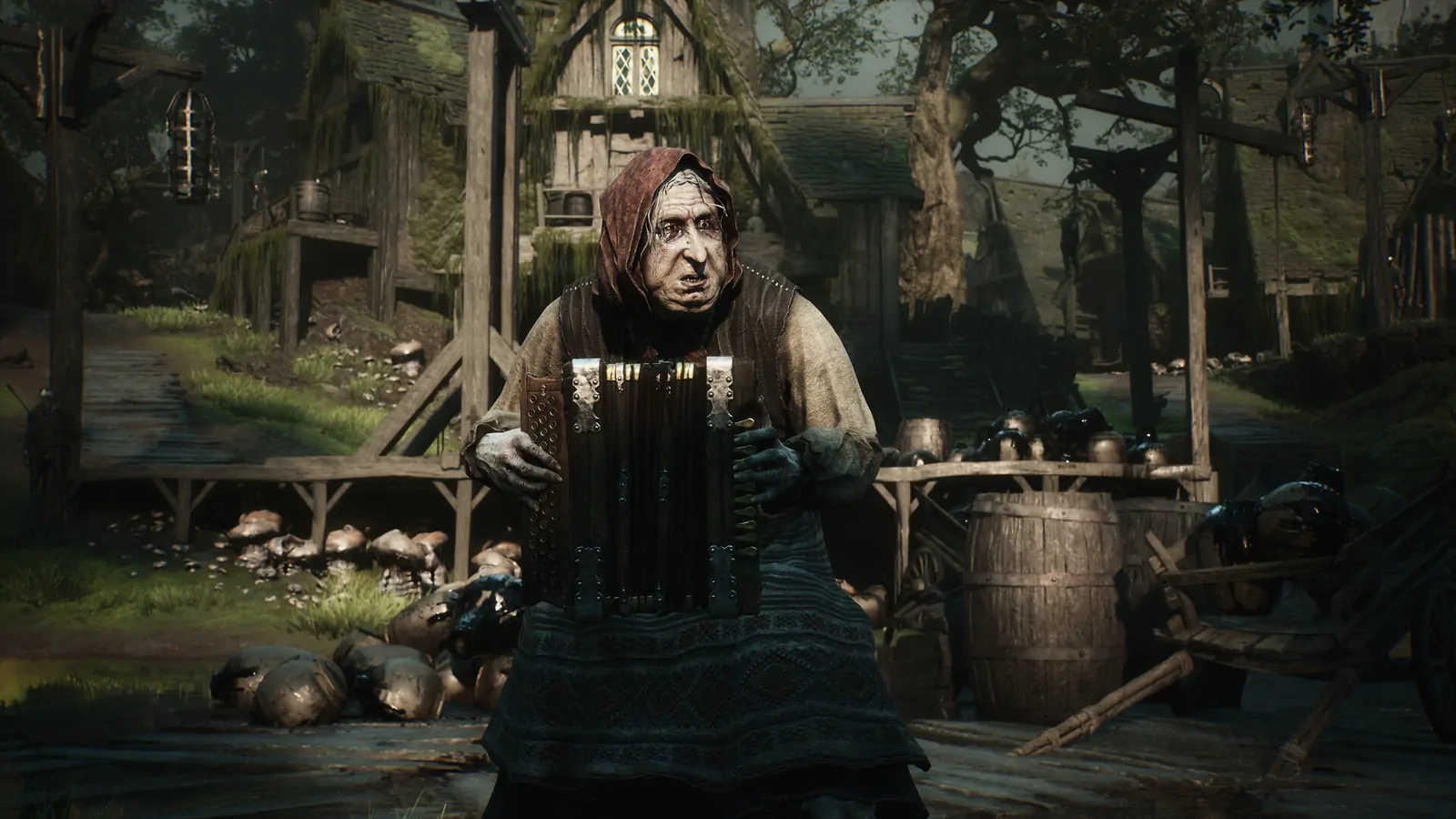
If a Pulse upgrade cannot be selected at a Beacon in Mortal Shell II, inspect the exact menu label, displayed material requirement, and input focus before spending resources elsewhere. A November player report described an inability to select or upgrade the entry; the November 16 official hotfix subsequently addressed mouse selection for Mether Pulse in the Beacon menu. The steps below help you establish what the current save is doing while preserving a usable campaign. They deliberately avoid assuming that reloading guarantees a fix or that buying another material always unlocks the option.
Install the November 16 mouse-selection fix
The November 16 official hotfix explicitly says that Mether Pulse can now be selected with the mouse in the Beacon menu. If mouse selection is your exact symptom, fully close the game, let the update finish, and retest that row before investigating materials or rebuilding a character. This is a documented fix for a specific input interaction, not a promise that every unavailable upgrade shares that cause. If the row highlights but confirmation remains disabled, inspect the displayed requirement as described below. Record the installed build if mouse selection still fails after updating.
Separate the upgrade from travel
Start by reading the text in the Beacon menu rather than relying on a remembered spelling. Player discussions can use “Mother’s Pulse” while other descriptions use “Mether’s Pulse,” and similar names are easily confused with travel terminology. Your screen is the reference for the action you are attempting. Record whether you are trying to improve healing, increase uses, or select a destination. These are different goals. A travel destination refusing selection should not send you searching for a healing upgrade material, and a healing menu problem should not be diagnosed as a missing destination.
Take a screenshot that includes the highlighted row and the requirement text. Include any greyed-out confirmation prompt or resource icon. This gives you a baseline without requiring a memory of how the menu looked before the problem began. Do not infer a hidden requirement just because an option is unavailable. First identify what the game explicitly asks for and which part of the interface does not respond. That distinction determines whether you should inspect inventory, test controls, or document a persistent interaction problem.
Inspect the material without consuming it
Leave the menu normally and open the inventory. Check the exact name and count of the material requested by the upgrade screen. Similar-looking icons and remembered purchases are not sufficient. If the menu specifies a particular resource, another upgrade item may not substitute for it. Return to the Beacon and compare the requirement with what is actually owned. If there is an obvious shortage, the next step is to obtain the stated requirement through ordinary progression, rather than treating a disabled confirmation as evidence of a broken save.
If the inventory appears to meet the requirement, preserve that state for a clear test. Do not buy several unrelated items or spend the same resource at another upgrade just to see whether something changes. That removes the condition you wanted to inspect and can make a later report difficult to reproduce. Record whether the count changes when you enter and exit the menu. If nothing has been confirmed, you should not assume that the game silently performed an upgrade merely because you pressed the button repeatedly.
Check whether the highlight reaches the row
An unselectable entry can mean that the menu does not focus it, or that focus reaches it but confirmation is disabled. Test navigation slowly and watch the visible highlight. On a controller, use deliberate directional presses rather than holding an input through several rows. On keyboard and mouse, distinguish hovering from selecting. The interface may present those states differently. This is an observation exercise, not a claim that switching devices is a known solution. You want to describe exactly where the interaction stops.
If another input device is already available and supported by your setup, compare it without changing unrelated controls. A row that responds to one device and not the other suggests a different report from an option that remains disabled with either. Avoid installing a remapping utility in the middle of this test. It adds another input layer and may hide the original behavior. If the focus behaves normally and the confirmation still fails, stop treating faster button presses as a troubleshooting method. Preserve the visible state and move to the next controlled check.
Compare a normal menu action
Without spending a valuable resource, check whether you can open another ordinary Beacon screen and return. You are looking for a broad menu-navigation failure versus one unavailable upgrade. If every submenu behaves incorrectly, note that wider symptom. If only the Pulse entry is affected, keep the problem narrow. This avoids describing the whole Beacon as unusable when resting, equipment access, or other interactions still work. It also helps you decide whether you can safely continue an exploration objective without immediately resolving the upgrade.
Do not activate a consequential travel or progression choice merely as a test. Read its prompt and cancel through the normal interface if you are only checking responsiveness. Menu testing should leave the campaign as close as possible to the starting condition. When you return to the problematic row, inspect its requirements again. A changed equipment screen does not establish that the upgrade is fixed, and an animation elsewhere in the menu does not prove that the original selection registered. Confirm the action you actually care about.
Reopen once, then decide whether to stop
Closing and reopening a menu is a low-cost way to check whether the presentation refreshes, but it is not an official repair for the reported issue. If you choose to return to the title screen and load normally, wait for any save indication to finish first. After loading, repeat the same short sequence and compare the resource count and highlighted row. One controlled retry provides useful information. Repeating the same reload for an hour usually provides less, especially if no visible condition changes.
If you can safely reach another already-known Beacon, you may compare the same action there using the same save and input device. Do not begin a difficult new route only to test a menu. A different result at another location is valuable evidence, but it still does not identify the underlying cause. Record both locations and the exact outcome. If the option remains unavailable everywhere you test, keep your resources intact and continue only with activities your present equipment can support. A blocked upgrade does not automatically mean the entire campaign must be restarted.
Report the failure precisely
A useful report includes platform, current build, Beacon location, the exact label, material requirement, owned count, input device, and where selection fails. Add whether the problem survives normal reopening or loading and whether another known Beacon behaves differently. Avoid calling it a confirmed patch regression unless you have a reliable comparison from the same save before and after that update. The November 16 mouse-selection fix is directly relevant when that is your symptom; a different failure, such as disabled confirmation despite normal focus, still needs its own reproduction.
Should you start over? Only after understanding the consequences and exhausting a reasonable report path; a fresh campaign is a large cost for an unproven repair. Should you edit the save? An undocumented edit can damage progression and erase the evidence. Should you farm more materials despite meeting the displayed requirement? That is not a demonstrated solution. Preserve the save, distinguish requirement checks from interface failures, and keep the next attempt short and reproducible. That gives you a practical way forward without turning one unavailable menu entry into a series of irreversible guesses.